This topic walks you through the steps to use QuestAI assistants. To get accurate responses, it is important that you know which specialist assistant to use when. However, if you are unsure, you can also use the Universal Semantic Assistant.
The following table guides you on which assistant to use in which scenarios:
|
If your question is about |
Use this assistant |
|---|---|
|
A question that crosses multiple topics at once |
Universal Semantic Assistant |
|
You are not sure which assistant to use |
Universal Semantic Assistant |
|
Finding or exploring a dataset, table, or column |
Catalog Assistant |
|
Where data comes from or what will break if it changes |
Lineage Assistant |
|
What a business term means or who defined it |
Glossary & Ownership Assistant |
|
Who owns a dataset or who to contact about an issue |
Glossary & Ownership Assistant |
|
Which data product to use for your analysis |
Data Marketplace Assistant |
|
Trust scores, SLAs, or requesting access to data |
Data Marketplace Assistant |
|
Generating definitions, tags, or classifications for assets |
Stewardship Assistant |
To use QuestAI assistants, follow these steps:
-
Go to Application Menu > QuestAI.
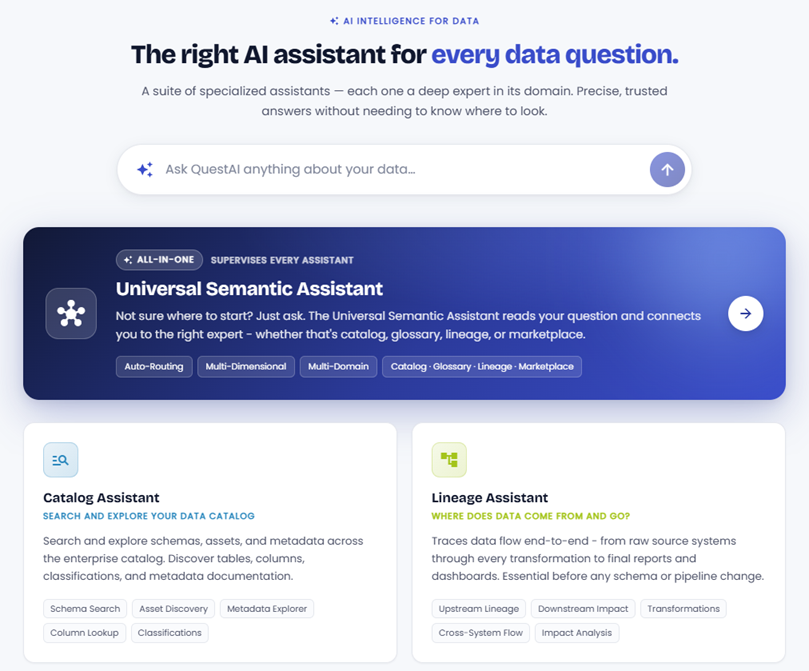
The QuestAI page opens.
-
Select your assistant. You have two options:
-
Start with the Universal Assistant if you are unsure where to begin, or your question touches more than one area of data intelligence.
-
Use a specialist if you already know what you need.
For example, use the Lineage Assistant if you want to trace where a metric comes from.
-
-
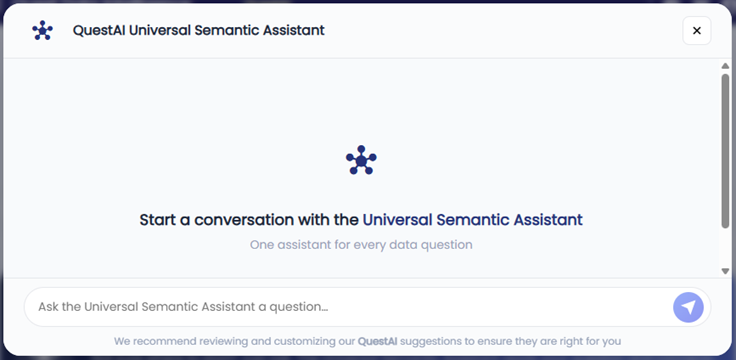
To start a conversation, click the required assistant.
The conversation screen opens.
For example, click the Universal Semantic Assistant.
-
Type your question in plain English.
The assistant will respond with a structured, easy-to-read answer.For best results, plain language works the best. Do not use commands or syntax. You do not need to use technical terminology. The assistants are designed to understand business language. Asking "where does our churn number come from?" works just as well as "show upstream lineage for the churn_rate column".
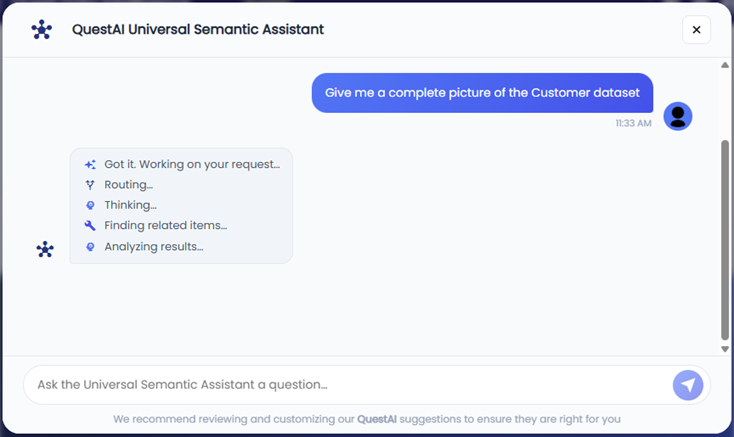
For example, type Give me a complete picture of the Customer dataset. The assistant starts analyzing your query.
The assistant responds with an answer as shown in the following image.
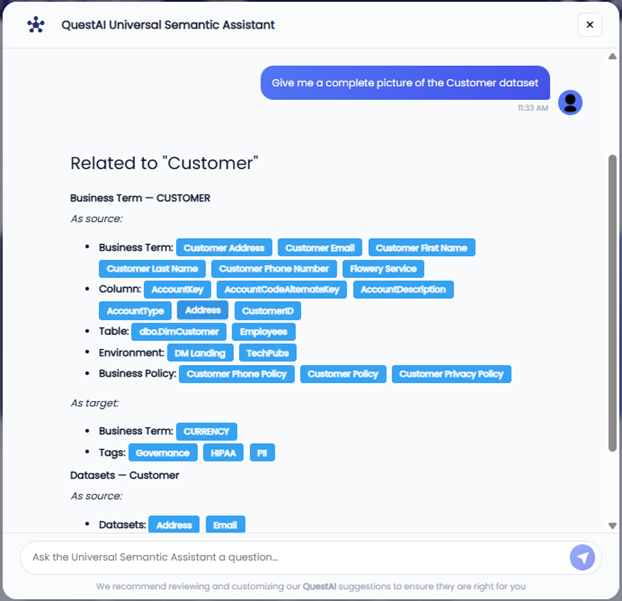
You can click assets or tags in the assistant's response to know more about it. For example, click Address and then click HIPAA. The assistant responds with information about the Address asset. However, for HIPAA, it does not find any assets.
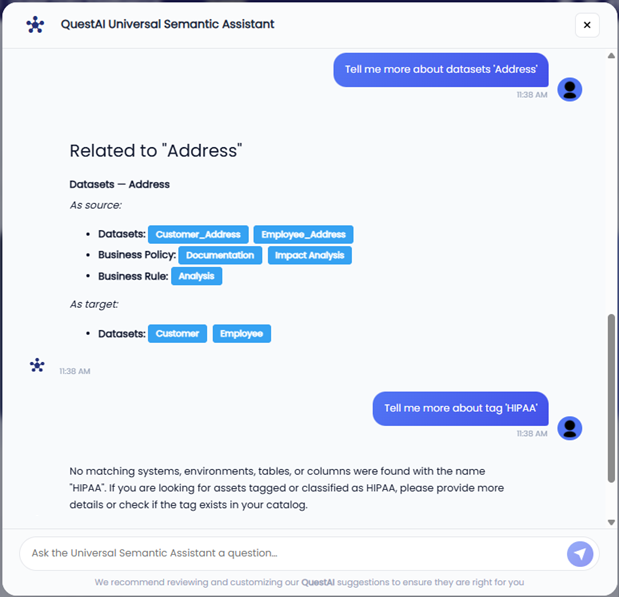
Next, ask about assets classified as HIPAA.
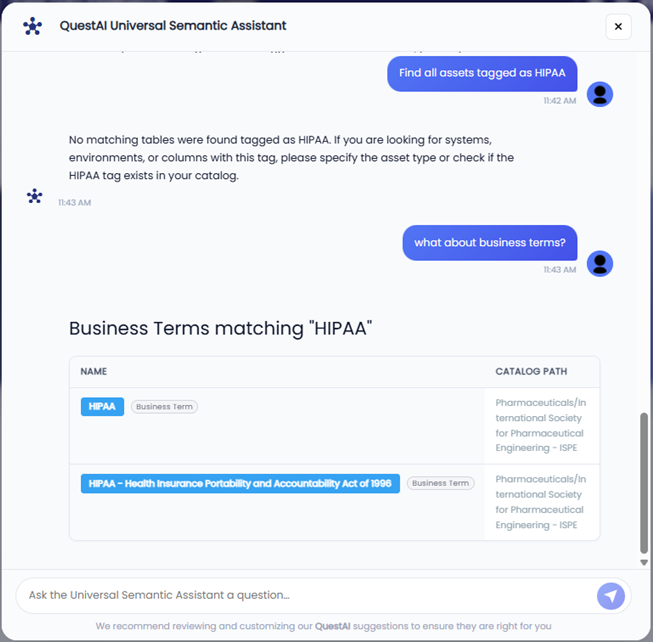
You can now build on your original query and follow up with questions. Each conversation is contextual. You can ask follow-up questions, and the assistant will remember the context of your previous conversation.